How to Virtually Try On Clothes with AI Before You Buy
Learn how to virtually try on clothes with AI, prepare better photos, compare realistic outfit previews, and shop online with less guesswork.
Buying clothes online often means judging a dress, jacket, or complete outfit on someone with different proportions, styling, and lighting. An AI virtual try-on reduces that guesswork by placing clothing onto your own photo so you can compare color, silhouette, neckline, layering, and overall style before you order.
InFashi lets you upload one clear photo, choose clothes from the collection or add a product reference, and generate a realistic visual preview. Use the result to build a shortlist rather than treating it as proof of size or physical fit. The best decision still combines the preview with measurements, fabric information, reviews, and the store's return policy.
How to virtually try on clothes with AI
- Open the AI clothes try-on and upload a sharp, front-facing photo of yourself.
- Choose an outfit from the collection or upload a clean image of the garment you want to preview.
- Generate the try-on and check that your face, body proportions, pose, hands, and background remain believable.
- Repeat with the same personal photo when comparing another outfit so the clothing is the main variable.
- Save realistic results, create a shortlist, and verify the real product's measurements and details before buying.
Original virtual clothes try-on examples
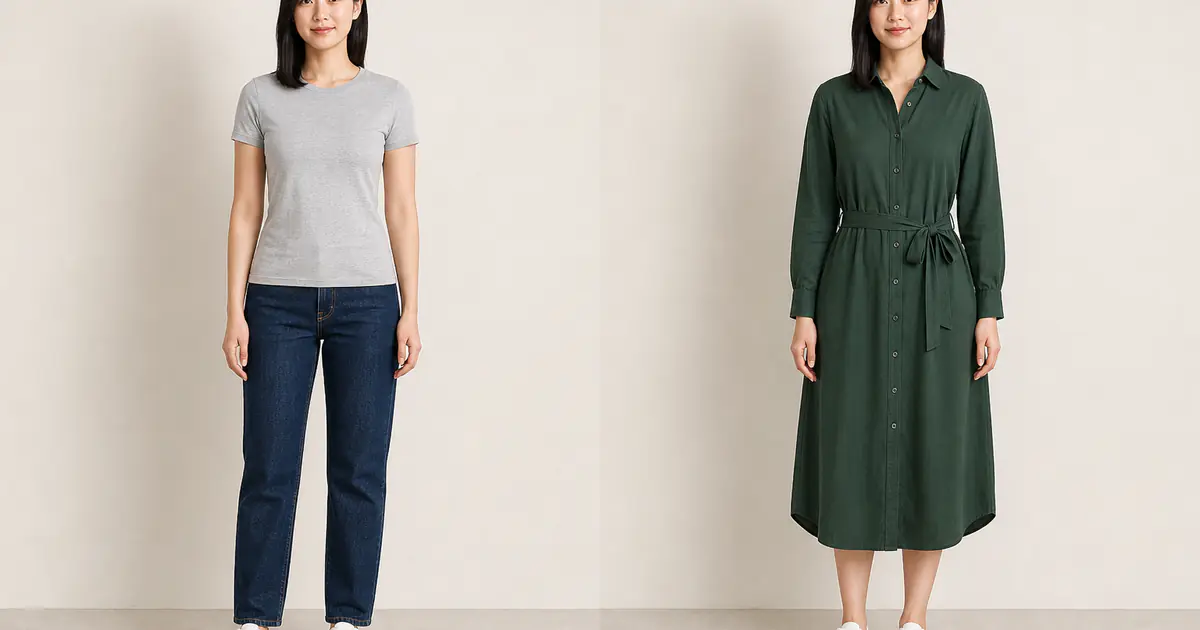
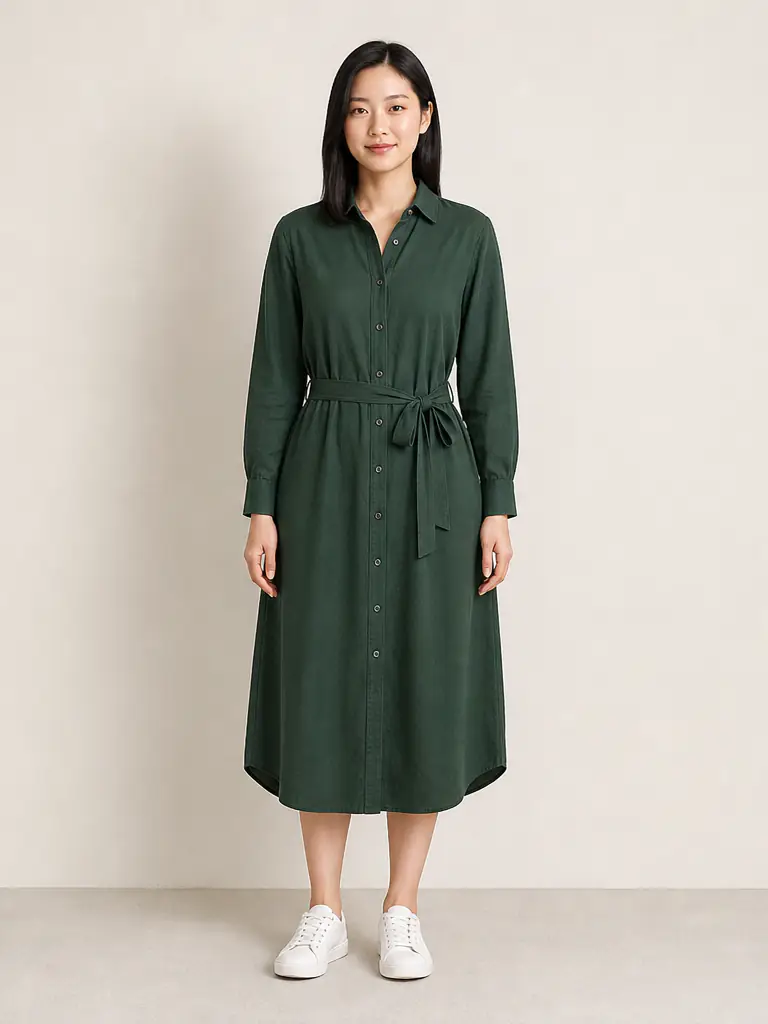
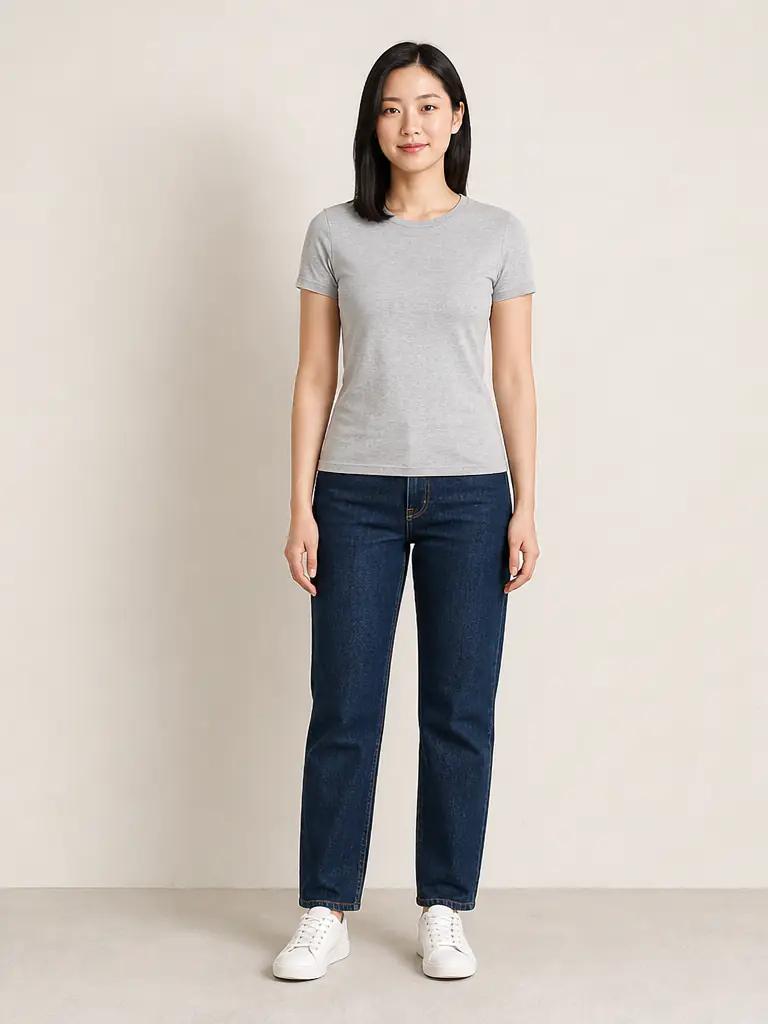
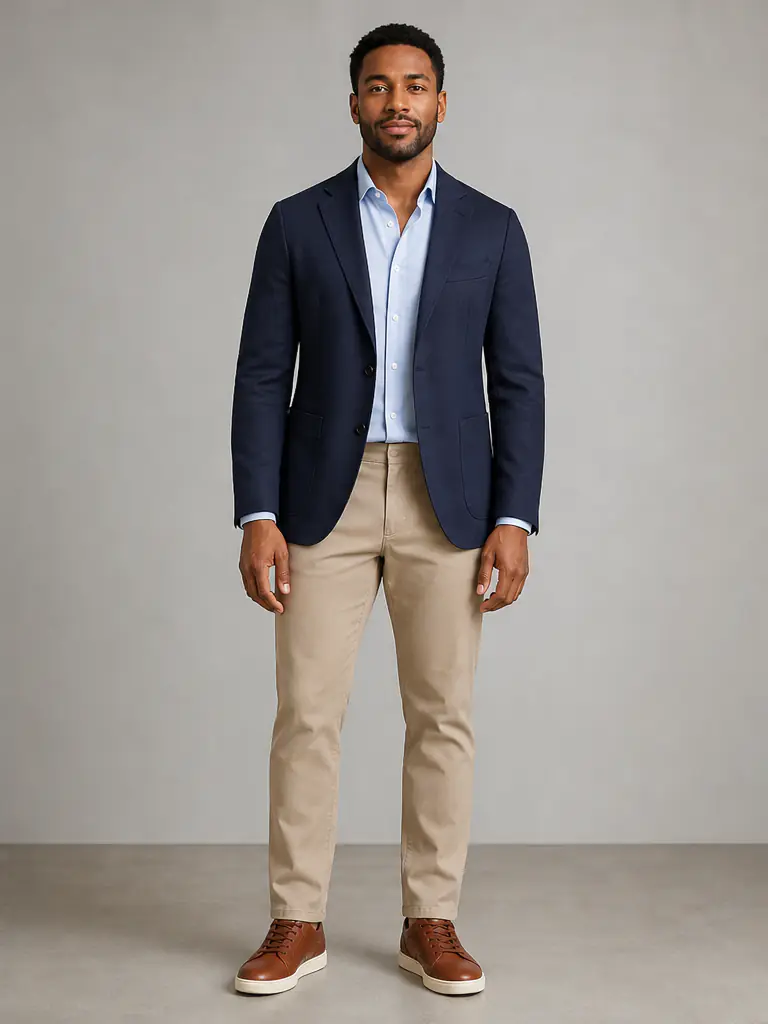
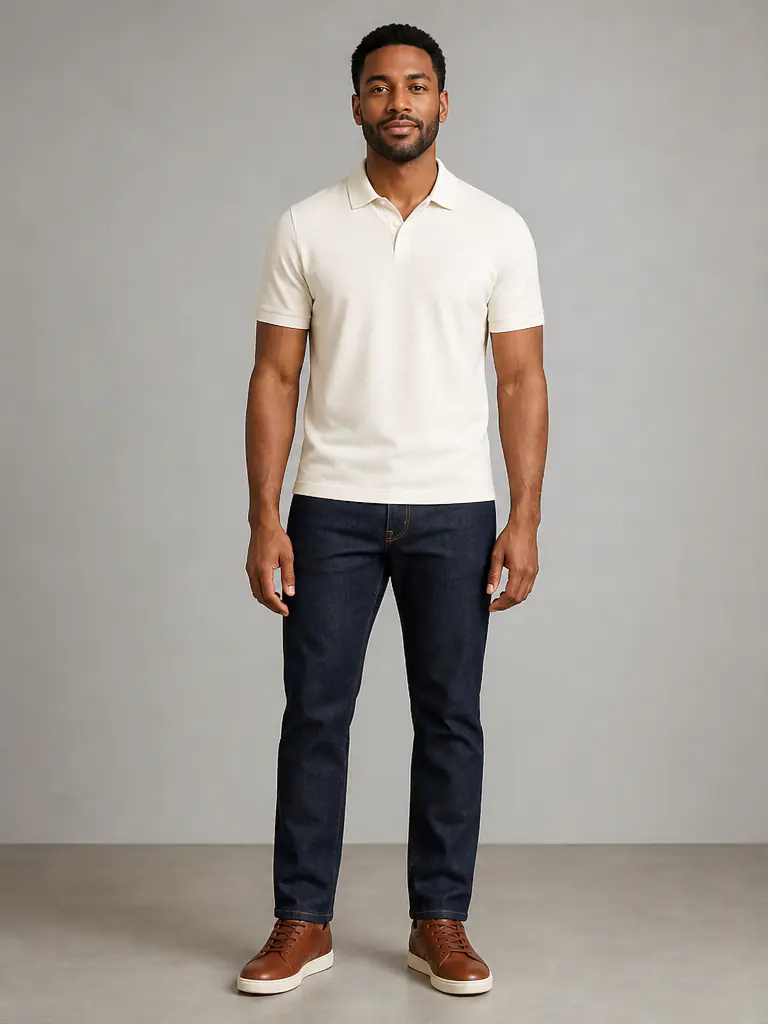
These examples were created specifically for this guide using new fictional models. Within each pair, the identity, expression, hairstyle, natural body proportions, stance, shoes, studio setting, and lighting remain consistent while only the outfit changes. Drag each divider and inspect the clothing rather than comparing two unrelated photographs.
The first pair compares jeans and a T-shirt with a belted green shirt dress. The second compares a polo-and-jeans outfit with a navy smart-casual blazer and tailored chinos.
 BeforeAfter
Women's outfit · Forest-green shirt dress
 BeforeAfter
Men's outfit · Navy smart-casual tailoring
Use a photo that shows your natural proportions
A useful source photo is sharp, evenly lit, and taken at about waist or chest height without a strong wide-angle effect. Stand naturally with your arms slightly away from your torso so the shoulder, sleeve, waist, and side boundaries are visible. Include your full legs and shoes when you want to judge a dress hem, trouser shape, or the balance of an entire outfit.
Avoid crossed arms, seated poses, hands covering the waist, large coats, bags, group photographs, deep shadows, and heavy beauty filters. Simple starting clothes can make your outline easier to interpret. A plain background helps, but clear body visibility and natural proportions matter more than creating a perfect studio photograph.
Choose a clean clothing or product reference
When trying a specific product, upload a reference that clearly shows the complete front of the garment. Look for visible necklines, sleeves, fastenings, waist seams, pockets, trouser or skirt shape, and hems. A retailer image on a plain background, a mannequin photograph, or a clean flat lay is usually easier to interpret than clothing hidden by crossed arms or a dramatic pose.
If you only have a store screenshot, crop away navigation, prices, promotional text, and unrelated products. Complex prints, lace, sequins, transparent fabrics, tiny logos, and unusual cutouts may be simplified by AI, so return to the product page to confirm those details after creating your shortlist.
Compare outfits fairly before you buy
Use the same personal photo for every option and change one important variable at a time. You might compare two dress silhouettes in the same color, a fitted blazer with a relaxed blazer, or a familiar outfit with one bolder alternative. Keeping the pose, crop, and lighting constant makes it easier to understand why one option feels stronger.
- Check whether your face, hair, expression, height, and body shape remain consistent.
- Inspect the neckline, shoulder line, sleeves, waist placement, pockets, and hem.
- Compare the apparent color and silhouette, while allowing for screen and lighting differences.
- Reject results with distorted hands, merged edges, invented fastenings, or unrealistic folds.
- Keep only believable generations before deciding which real products deserve closer review.
What an AI outfit preview cannot confirm
A virtual fitting room can help with styling, proportion, color, layering, and general silhouette. It cannot feel fabric, test comfort or movement, measure your body, or confirm bust, waist, hip, shoulder, sleeve, inseam, and garment-length fit. It also cannot tell whether shoes pinch, a zipper pulls, a fabric stretches, or a light material becomes transparent.
Before checkout, compare your measurements with the retailer's current size chart and garment dimensions. Read the fabric composition, stretch and care notes, model measurements, customer reviews, delivery information, and return terms. Use AI to decide what deserves attention—not as a guarantee of what will arrive.
Build a practical three-outfit shortlist
Start with three candidates: one close to your normal style, one with a different silhouette or formality level, and one bolder color or design. Generate each on the same source photo, discard unrealistic results, and compare the details that matter for your event, workday, trip, or everyday wardrobe. This creates a useful decision instead of an endless stream of random outfit changes.
Open InFashi's AI clothes try-on from any Try button on this page to upload your photo and compare outfits. You can also download the Android app from the article action panel to continue experimenting with saved clothing references on your phone.
Frequently Asked Questions
- Can I virtually try on clothes using my own photo?
- Yes. Upload a clear photo of yourself, choose clothing from the InFashi collection or upload a garment reference, and generate an AI outfit preview on your image.
- Is the InFashi virtual clothes try-on free?
- InFashi offers free initial generations, subject to the limits of the free plan. Paid plans are available when you need more outfit comparisons.
- Can I try on clothes from an online store?
- Yes. Save a clean product image or closely cropped screenshot showing the complete garment, then upload it as the clothing reference. Avoid references covered by text, menus, or another person's pose when possible.
- Does an AI clothes try-on show the exact size and fit?
- No. It is a visual styling preview, not a measurement or sizing tool. Confirm the retailer's measurements, fabric details, size chart, customer reviews, and return policy before purchasing.
- What photo works best for virtual outfit try-on?
- Use a sharp, well-lit, front-facing photo with your body visible, arms slightly separated, and minimal obstruction from bags or bulky layers. Include your legs and shoes when garment length matters.
Try it on InFashi
Upload a photo in your browser, or download the Android app and preview your look on your phone.