How to Try On Clothes From Any Website Using a Screenshot
Learn how to try on clothes from an online store using a product image or screenshot. Prepare a clean reference, upload your photo, and compare AI outfit previews.
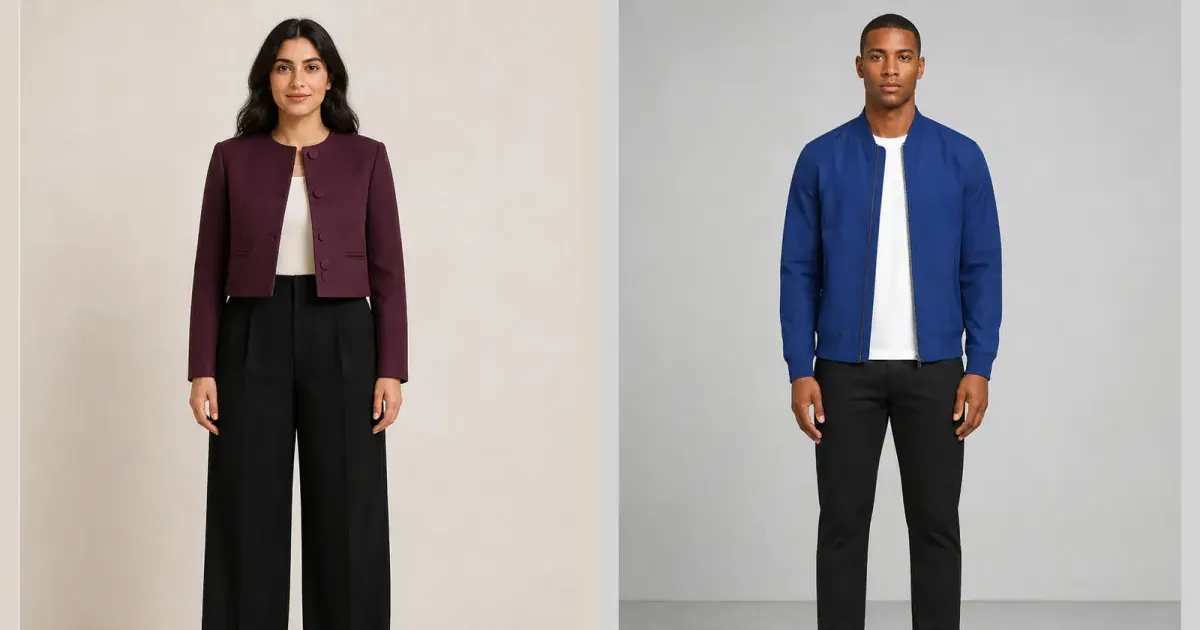
Many stores still do not offer virtual fitting rooms, and the available try-on button may support only selected products. A practical alternative is to save a clean product image—or take a carefully cropped screenshot—and use it as the clothing reference for an AI virtual try-on on your own photo.
InFashi lets you upload your photo and a reference outfit, so the clothing does not need to come from one supported retailer. This workflow is useful when comparing products from different stores, reviewing a screenshot saved earlier, or testing a garment discovered in a social post. The result is a visual approximation, not a connection to the retailer's inventory or sizing system.
How to try on clothes from an online store
- Open the retailer's product page and choose the clearest front-facing image of the garment or complete outfit.
- Save the product image when permitted, or take a screenshot and crop away menus, prices, text, thumbnails, and unrelated products.
- Open InFashi, upload a clear full-body photo, and add the cropped clothing image as your outfit reference.
- Generate the preview and check that your identity, body proportions, pose, and the main garment structure remain believable.
- Repeat with the same personal photo for other products, then verify the real size, fabric, details, stock, and return terms on each store.
Original retailer-image outfit examples
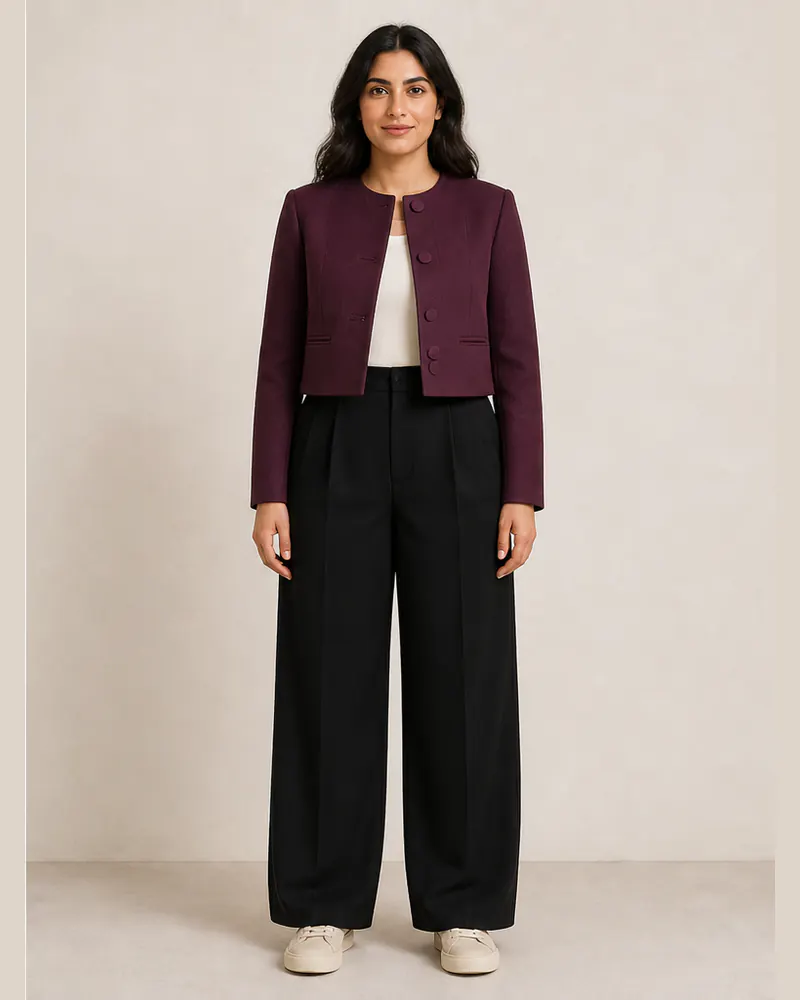
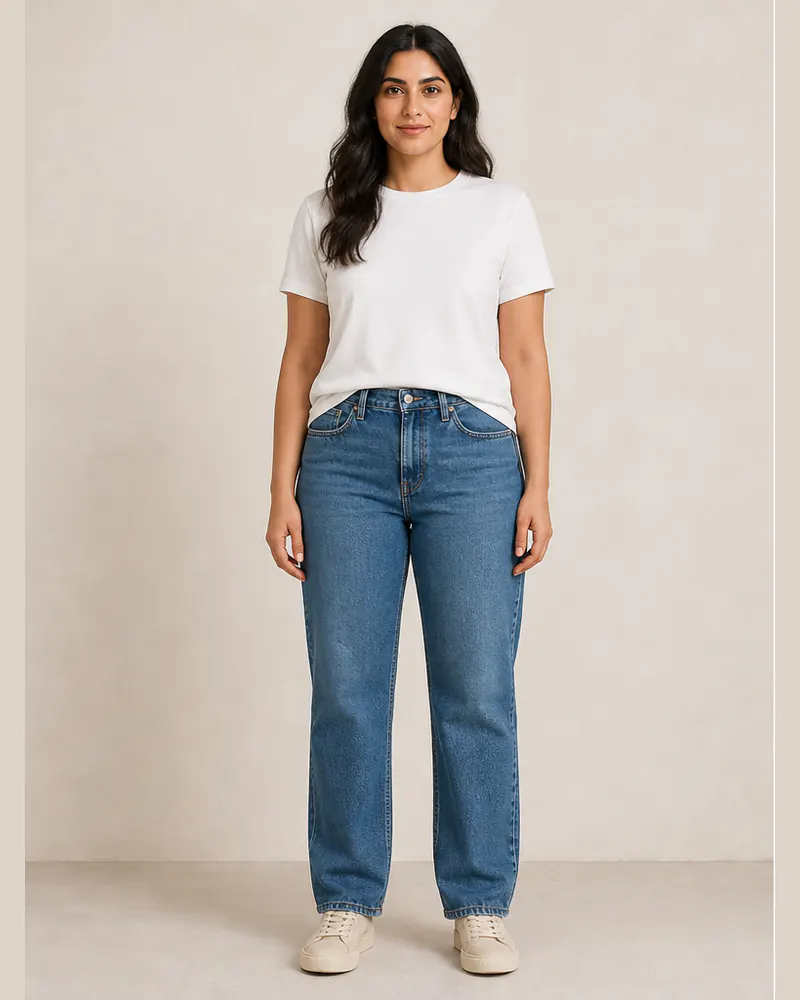
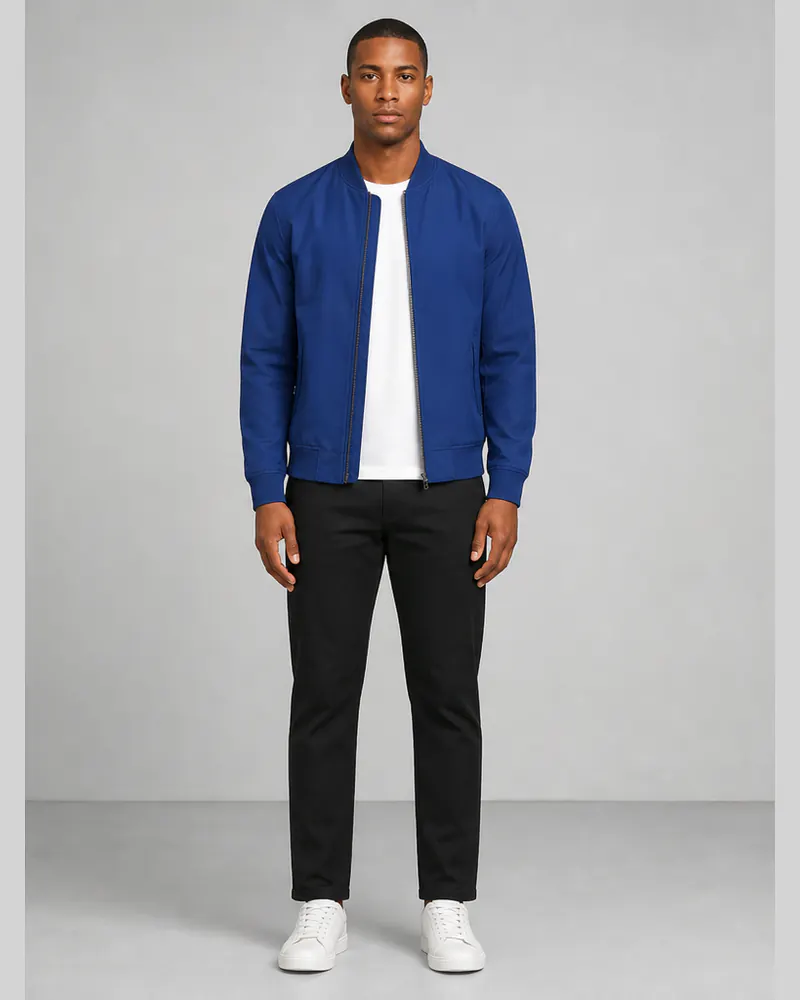
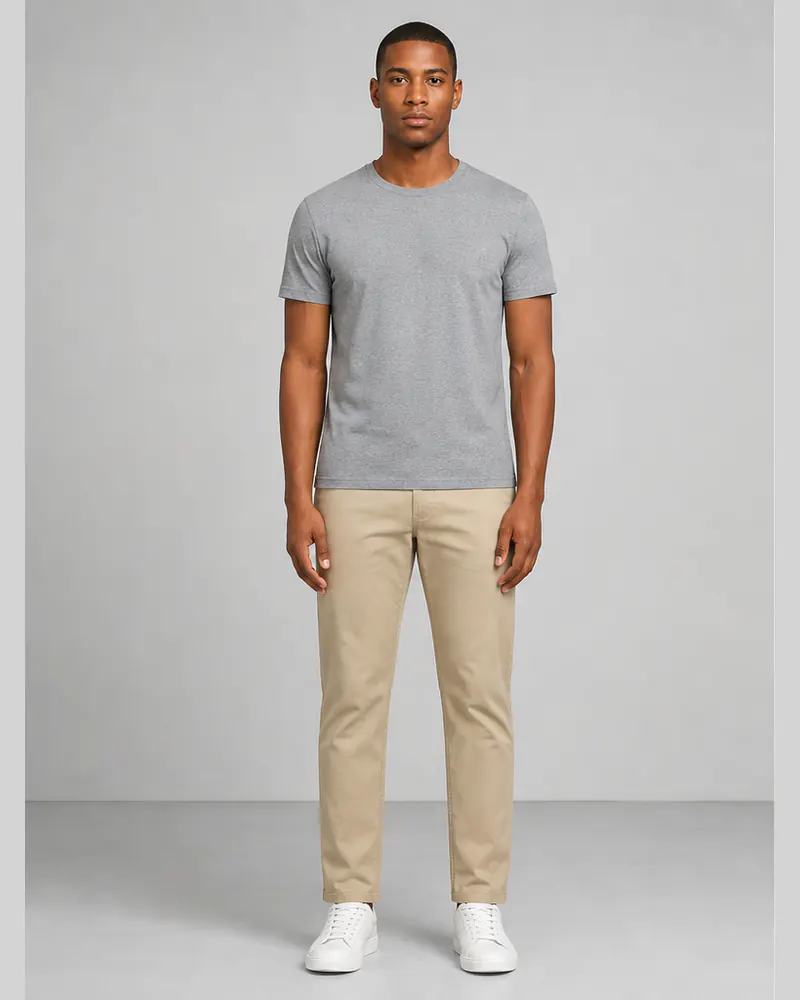
These original comparisons demonstrate the type of result you can evaluate after supplying an outfit reference. They use new fictional models created for this guide. Within each pair, the face, hair, body proportions, stance, shoes, lighting, and background remain consistent while the clothes change.
The women's example previews a plum cropped jacket and wide-leg trousers. The men's example previews a cobalt bomber jacket with a simple black trouser outfit.
 BeforeAfter
Retailer outfit try-on · Plum jacket and wide-leg trousers
 BeforeAfter
Retailer outfit try-on · Cobalt bomber jacket outfit
Choose the best image from the product page
Look through all retailer photographs instead of automatically using the first image. The strongest reference usually shows the complete front, with the neckline, sleeves, fastenings, waist, pockets, leg or skirt shape, and hem visible. A flat lay, mannequin, or front-facing model image can all work when the clothing is unobstructed.
Avoid thumbnails, low-resolution zooms, side or back views when you want a front preview, and photographs where hands, bags, coats, or furniture cover the garment. If an outfit contains several layers, choose an image where each layer is easy to distinguish. Do not combine several screenshots into a collage, because the AI may mix unrelated pieces.
How to crop a retailer screenshot
Crop closely enough to remove the browser bar, navigation, price, promotional badges, product description, color swatches, carousel arrows, and other product thumbnails. Keep the complete clothing silhouette inside the crop. Cutting off sleeves, hems, or trouser legs removes information the AI needs to interpret the design.
Do not enlarge a tiny screenshot repeatedly; it will not restore missing texture or construction detail. Return to the product gallery and select its largest clear image. Use retailer content for your private comparison in line with the site's terms, and do not present an AI result as an official or exact retailer image.
Use one consistent photo of yourself
Use a sharp, evenly lit, front-facing photograph with your body visible. Stand naturally, keep the camera level, and separate your arms slightly from your torso. Simple starting clothes make the body outline easier to read. Include your feet when comparing dresses, trousers, long coats, or complete outfits with shoes.
Keep that photo unchanged for every store comparison. If you switch the camera angle, lighting, pose, or crop, you add variables that have nothing to do with the garment. A consistent source image makes comparisons between retailers much more useful.
What to compare in the generated outfit
- Overall silhouette and whether the visual weight sits at the shoulders, waist, hips, or hem.
- Neckline, collar, sleeves, lapels, fastenings, waistband, pockets, and layer boundaries.
- Color and print compared with the original retailer photograph under similar screen brightness.
- Fabric behavior, including stiffness, softness, shine, folds, and drape.
- Artifacts around hair, hands, waist, legs, and shoes, plus any unwanted change to your face or body.
The preview cannot confirm size, stock, or product accuracy
An AI preview may simplify a print, move a seam, change a button, or interpret fabric differently. It does not receive live information about size, price, stock, shipping, material, or returns. It also cannot measure your body or tell whether a garment will feel comfortable when you move, sit, or layer it.
Use the result to narrow a shortlist, then return to the original product page. Compare the current size chart with your measurements, read the fabric composition and reviews, inspect every product photo, and confirm the return policy. Open the InFashi clothes tool from any Try button here, or use the Android app when you want to test saved retailer images on your phone.
Frequently Asked Questions
- Can I try on clothes from any website?
- You can use a clear product image or a carefully cropped screenshot as an outfit reference in InFashi. Results depend on how completely the garment is shown and whether important details are visible.
- Is a product image better than a screenshot?
- Usually. A clean product image contains less navigation, text, pricing, and unrelated content. If only a screenshot is available, crop it closely around the complete garment before uploading.
- Can I use an outfit worn by a retailer's model?
- Yes, if the complete outfit is clearly visible. Straightforward front-facing images are generally easier to interpret than crossed arms, seated poses, jackets covering layers, or dramatic angles.
- Will the AI preserve the exact product details?
- Not always. Logos, text, prints, buttons, stitching, lace, sheer panels, and unusual construction can change. Use the preview for overall style and return to the retailer's product images for exact details.
- Does a screenshot try-on confirm the right size?
- No. It previews appearance rather than measurements. Check the retailer's size chart, garment measurements, material, stretch, reviews, shipping, and return policy before ordering.
Try it on InFashi
Upload a photo in your browser, or download the Android app and preview your look on your phone.