How to Change Clothes in a Photo With AI
Learn how to change clothes in a photo with AI. Upload your picture, preview a new outfit, compare realistic results, and understand what to check before buying.
An AI clothes changer lets you upload a photo and preview a different outfit without manually cutting, masking, or editing every garment. You can test a dress, blazer, shirt, trousers, or complete look on your own image before shopping, packing, attending an event, or deciding how you want to style something.
InFashi is designed for virtual outfit previewing: upload your picture, choose clothes from the collection or provide an outfit reference, and generate a new version. The useful question is not simply whether the edited image looks polished. It is whether your face, body proportions, pose, and the important garment details remain believable enough to support a decision.
How to change clothes in a photo with AI
- Open the AI clothes changer and upload one clear, front-facing photo of yourself.
- Select an outfit from the collection or upload a reference image of the clothes you want to try.
- Generate the outfit change and check that your identity, body shape, posture, and background remain consistent.
- Save a realistic result, then repeat with the same source photo if you want to compare another outfit.
- Use the preview to create a shortlist, then verify the real garment's measurements and product details.
Original AI clothes-changing examples
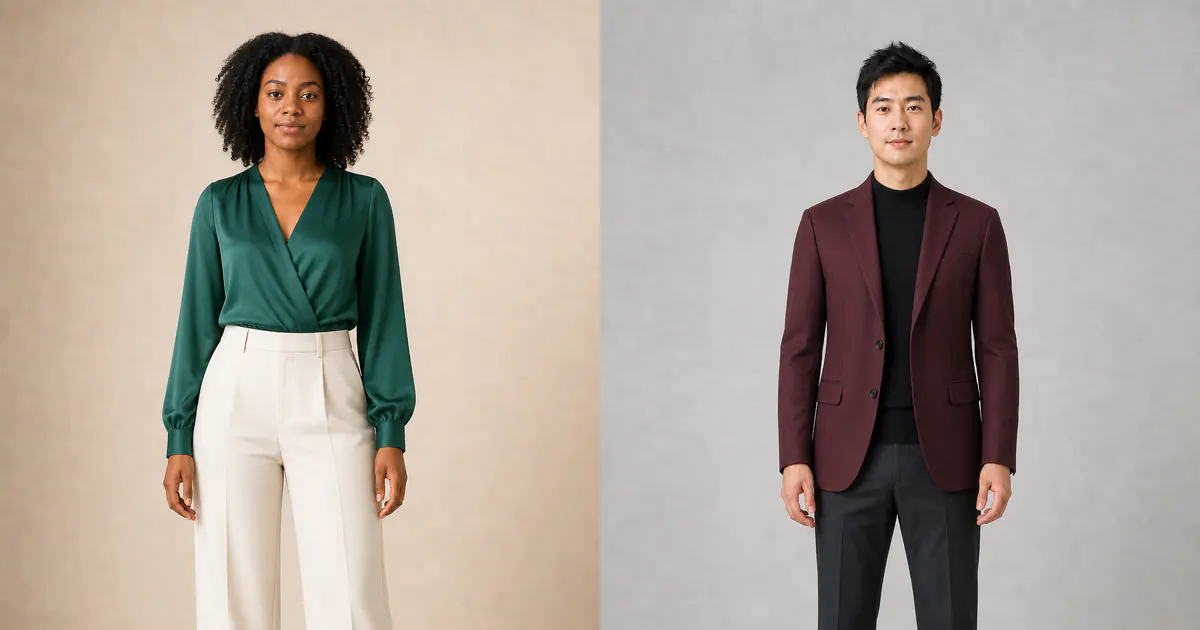
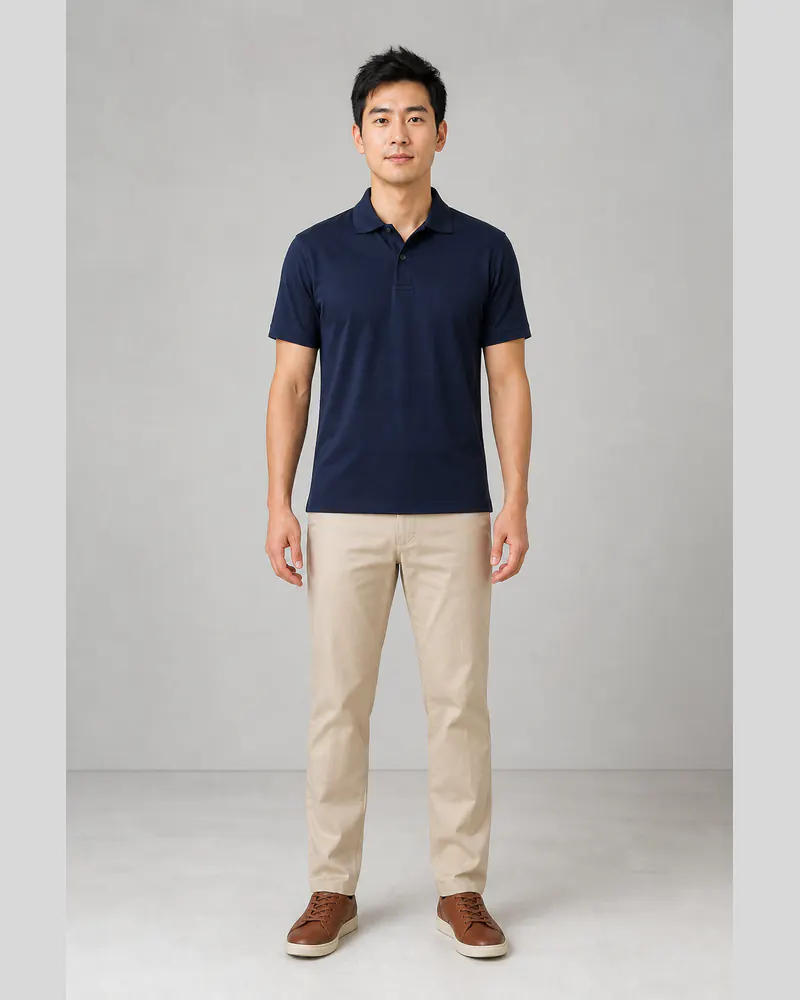
These original examples were made specifically for this article using new fictional models. Within each pair, the identity, hair, expression, body proportions, pose, shoes, studio setting, and lighting remain consistent while the clothing changes. Drag each divider to inspect the outfit rather than comparing two unrelated people.
The women's example changes a charcoal T-shirt and jeans into an emerald wrap blouse with cream tailored trousers. The men's example changes a navy polo and chinos into a burgundy blazer, black knit, and charcoal trousers.
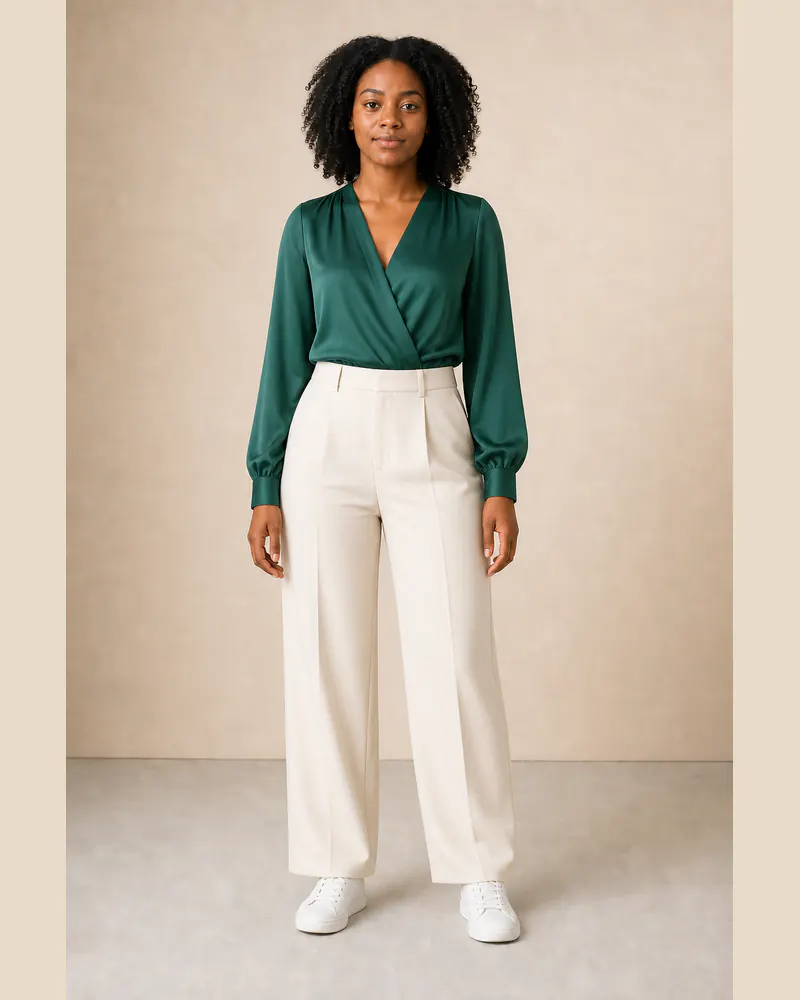
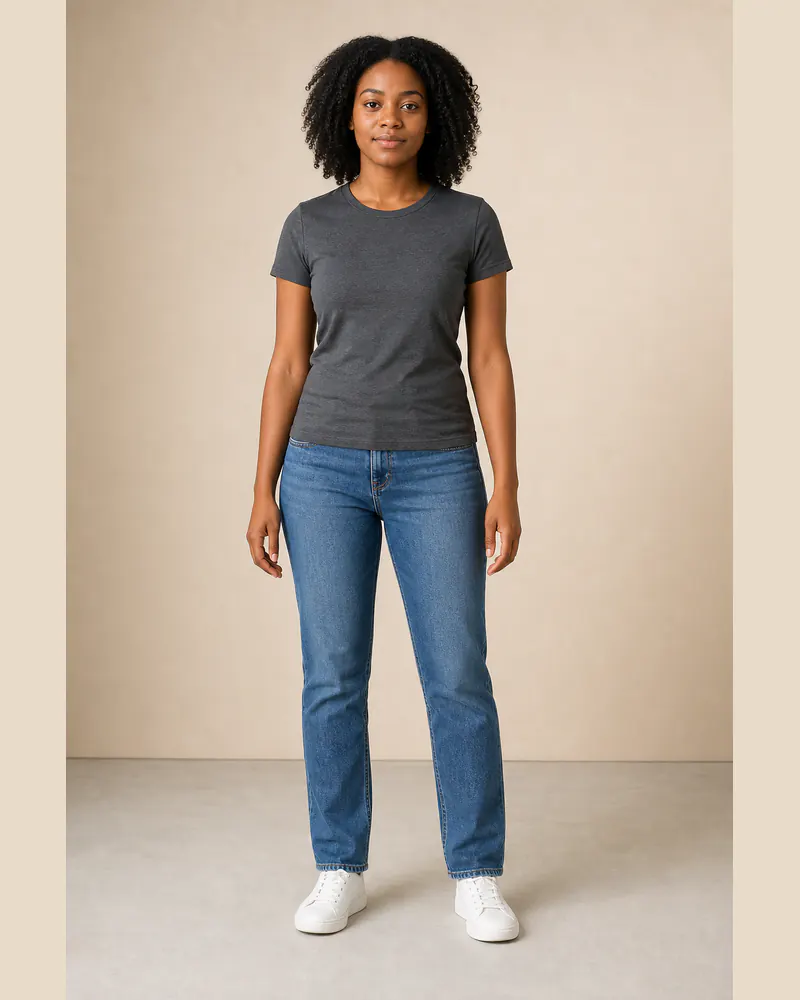 BeforeAfter
Women's outfit change · Emerald blouse and cream tailoring
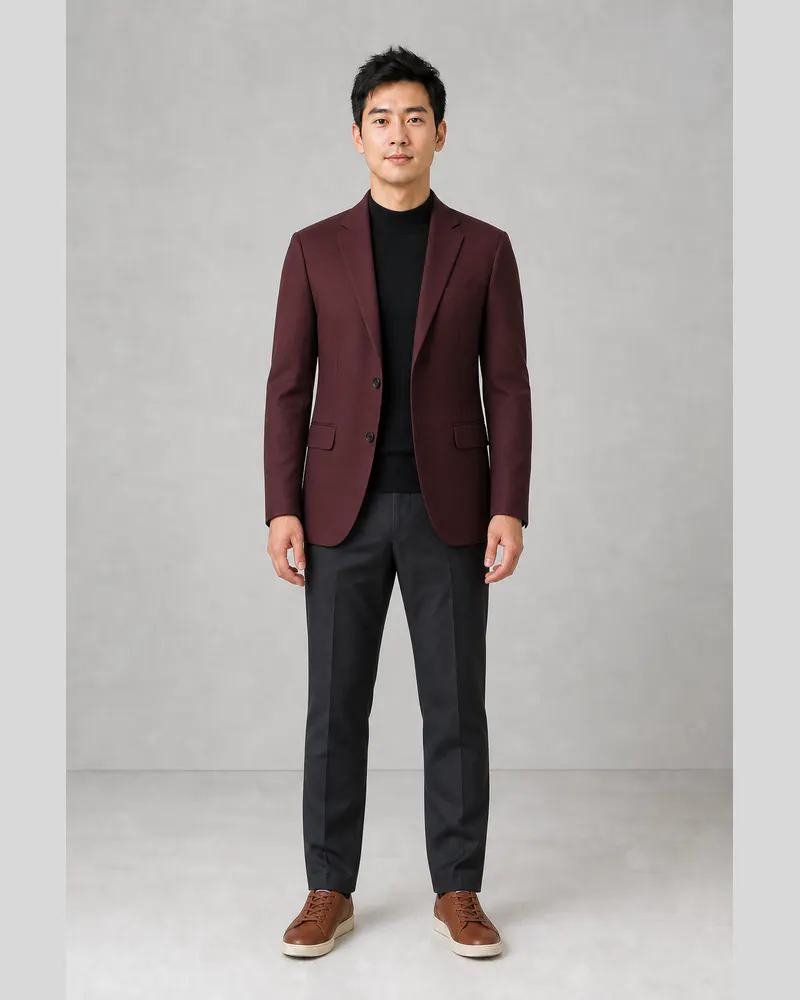
 BeforeAfter
Men's outfit change · Burgundy blazer and charcoal tailoring
Use a photo that clearly shows your clothes and pose
A strong source photo is sharp, evenly lit, and taken with the camera level. Stand naturally with your arms slightly away from your torso so the AI can see the shoulder, sleeve, waist, and side boundaries. Include your legs and feet when trouser length, skirt length, or the relationship with shoes matters.
Simple, relatively fitted starting clothes usually make the body outline easier to understand. Avoid crossed arms, seated poses, hands covering the waist, large coats, bags, group photographs, mirrors, deep shadows, and wide-angle close-ups. A plain background helps, but clear body visibility matters more than creating a studio image.
Choose a useful outfit reference image
When you want to change into a specific product, use a clean reference that shows the complete front of the garment. The neckline, sleeves, fastenings, waist, pockets, trouser or skirt shape, and hem should be visible. A centered retailer image, mannequin photograph, or flat lay is usually more useful than clothing hidden by a jacket, crossed arms, or a dramatic pose.
If the reference contains several layers, the AI has to interpret which pieces belong to the outfit. Start with one clear look rather than a collage. Tiny logos, text, embroidery, lace, sequins, unusual cutouts, sheer fabric, and complex prints may be simplified or changed, so compare those details with the original product page afterward.
What to inspect after an AI outfit swap
- Identity: your face, hair, expression, skin tone, and apparent age should stay consistent.
- Body: reject results that noticeably reshape your shoulders, waist, hips, height, or posture.
- Garment structure: examine the neckline, sleeves, lapels, waist seam, pockets, and hem placement.
- Fabric: check whether the drape, folds, shine, print, and color still resemble the reference.
- Edges: inspect hands, hair, shoes, and places where clothing overlaps the body for obvious artifacts.
Use the same original photograph for every outfit comparison. Changing the pose, crop, lighting, or camera angle introduces extra differences and makes it harder to judge whether the clothing caused the effect you prefer.
AI outfit preview is not the same as physical fit
An AI clothing editor can help you evaluate color, silhouette, layering, neckline, proportion, and overall styling. It cannot feel the fabric or confirm bust, waist, hip, shoulder, sleeve, inseam, or garment-length measurements. It also cannot tell whether a zipper pulls, shoes are comfortable, a fabric stretches, or a jacket allows enough movement.
Before buying, check the retailer's current size chart, garment measurements, fabric composition, stretch information, model measurements, customer reviews, delivery terms, and return policy. Think of the generated image as a visual planning aid, not proof of size or an exact promise of the delivered product.
Build a useful three-outfit comparison
Try three options on the same photo: one outfit close to what you normally wear, one with a different silhouette or level of formality, and one bolder color or style. Save only the realistic generations and compare the features that matter for your situation. This keeps an AI outfit changer practical instead of turning it into endless random edits.
When you are ready, open InFashi's AI clothes changer from any Try button on this page. You can also download the Android app to keep experimenting with outfit references and saved looks on your phone.
Frequently Asked Questions
- How can I change clothes in a photo with AI?
- Upload a clear photo to InFashi, choose an outfit from the collection or upload a clothing reference, and generate the result. The AI creates a new image that previews the selected clothes while aiming to preserve your identity and pose.
- Can I upload my own outfit reference?
- Yes. Use a clean image that shows the complete garment or outfit from the front. References with visible necklines, sleeves, waistlines, trouser shape, and hem details are generally easier to interpret.
- Is the AI clothes changer free?
- InFashi offers free initial try-ons, subject to the generation limits of your plan. Paid plans are available when you need more outfit comparisons.
- Does an AI outfit change show the exact physical fit?
- No. It provides a visual preview rather than body measurements or a physical fitting. Always check the retailer's size chart, fabric details, reviews, dimensions, and return policy before purchasing.
- What photo gives the best outfit-swap result?
- Use a sharp, well-lit, front-facing image with your body visible and arms slightly separated from your sides. Avoid crossed limbs, bulky coats, bags, group photos, and extreme camera angles.
Try it on InFashi
Upload a photo in your browser, or download the Android app and preview your look on your phone.