How to Virtually Try On Shirts Online Using Your Photo
Upload your photo and virtually try on shirts and tops online. Learn how to compare collars, sleeves, colors, and silhouettes before you buy.
A shirt can look perfect in a product photograph yet feel completely different when you imagine it with your face, coloring, proportions, and existing wardrobe. A virtual shirt try-on places the top onto your own photo so you can compare neckline, collar, sleeves, color, pattern, and overall silhouette before deciding what deserves a closer look.
With InFashi, you can upload one personal photo, choose a top from the collection or add a product image, and generate an AI shirt preview in the browser. The result is useful for style comparison, but it is not a measurement tool. Combine the visual preview with the retailer's size chart, fabric details, customer reviews, and return policy before buying.
How to try on shirts online using your photo
- Open the AI clothes try-on and upload a clear, front-facing photo that shows your head, shoulders, torso, waist, and arms.
- Choose a shirt or top from the InFashi collection, or upload a clean product image of the exact garment you want to preview.
- Generate the result and check whether your face, body proportions, pose, hands, lower garment, and background remain believable.
- Repeat with the same personal photo when testing another shirt so the top is the main variable in your comparison.
- Save the strongest previews, then verify the real shirt's measurements, fabric, color, availability, price, and return terms.
Original women's and men's shirt try-on examples
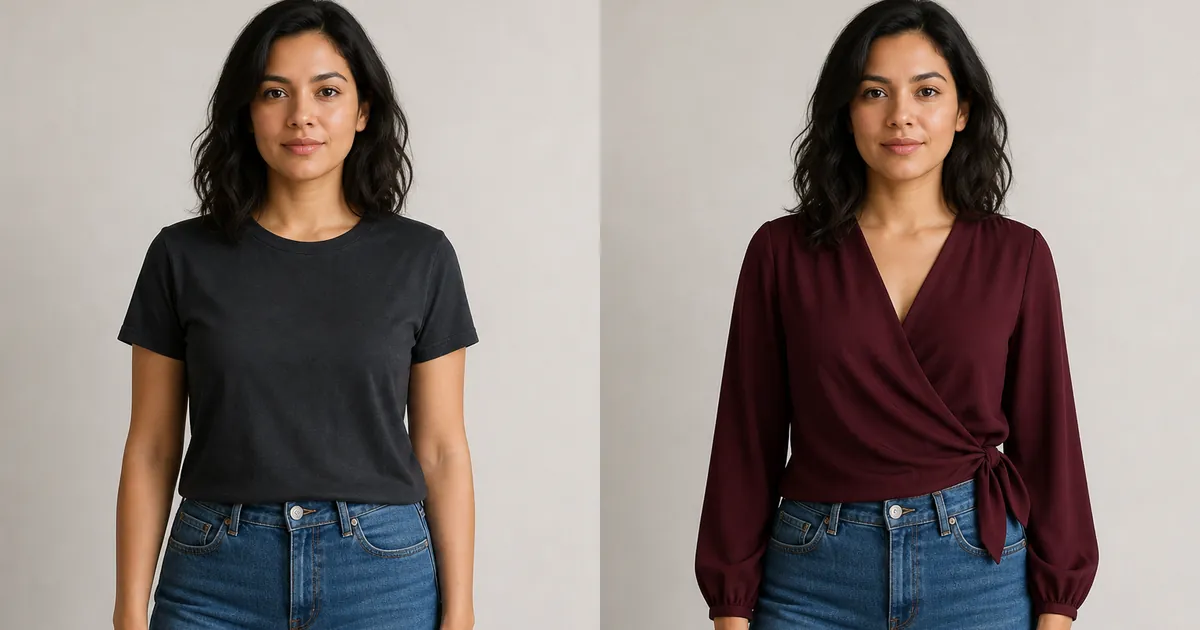
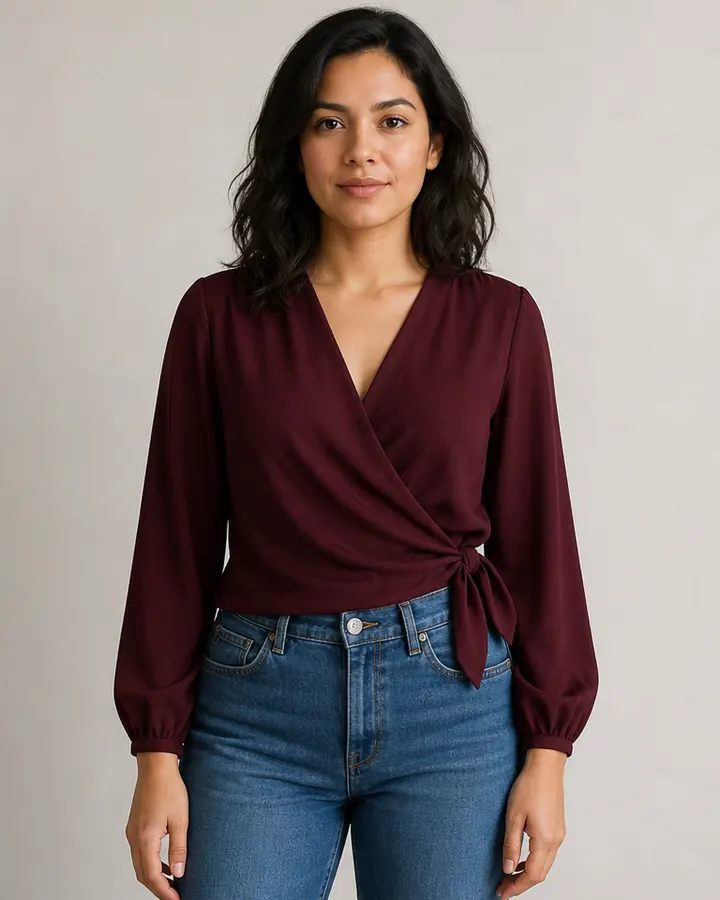
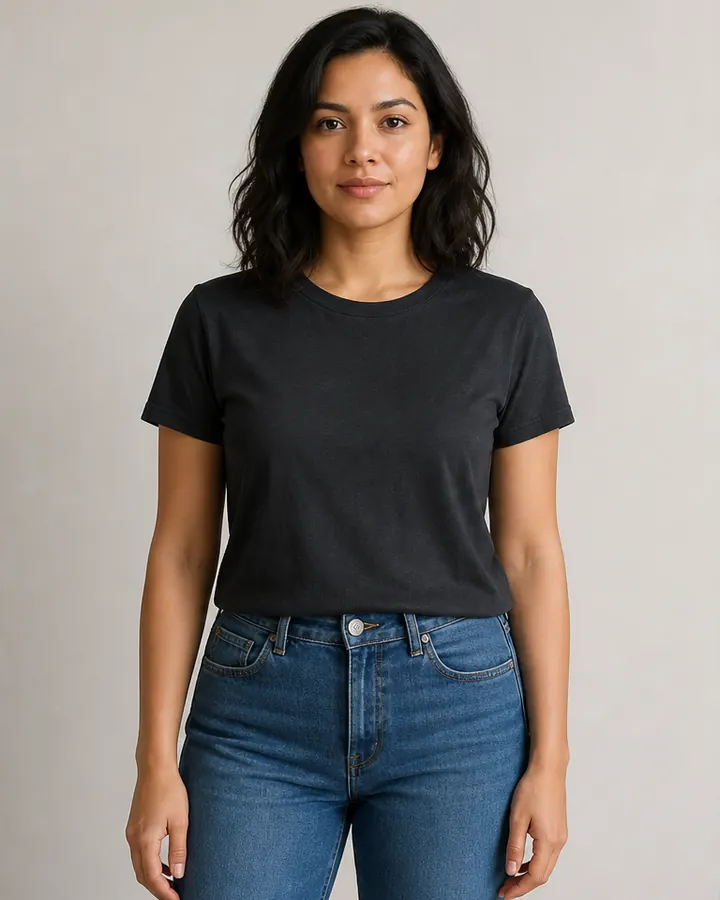
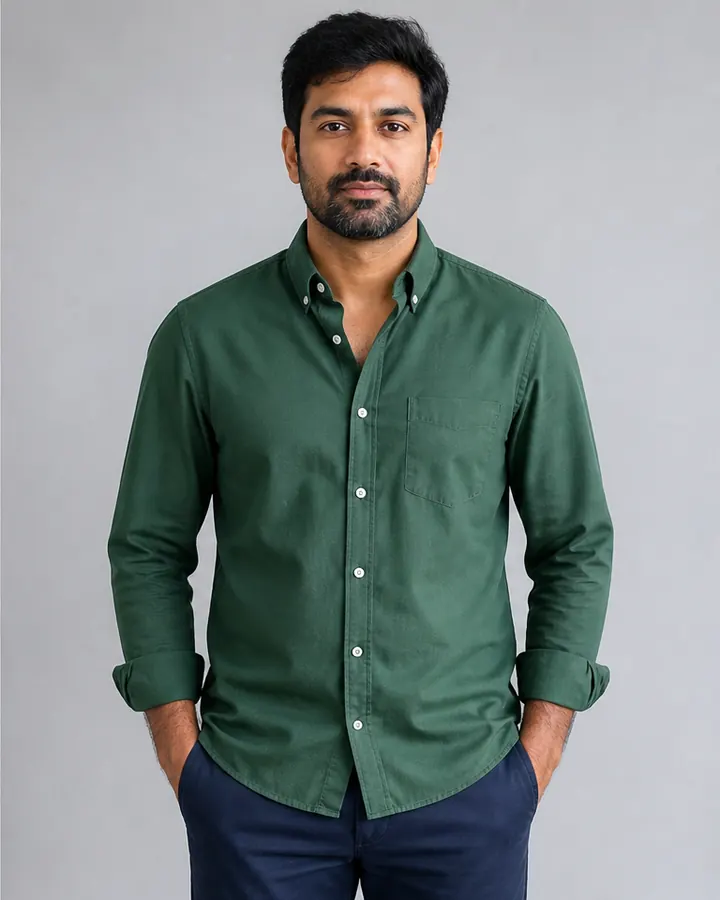
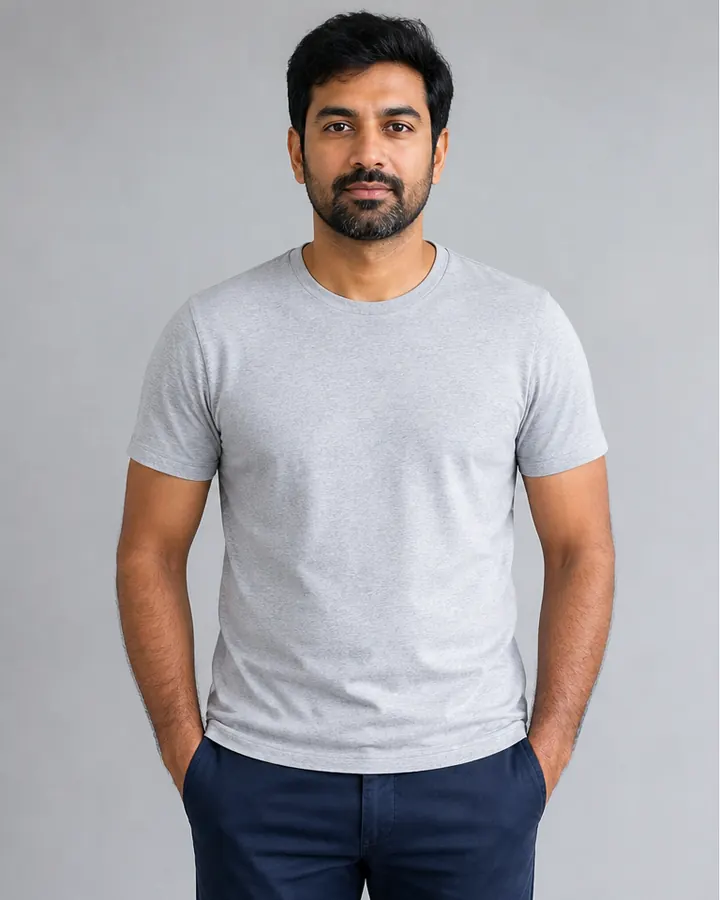
These examples use new fictional models created specifically for this article. Within each pair, the person's identity, expression, hairstyle, body proportions, pose, trousers, camera, background, and lighting stay consistent while only the top changes. Drag the divider to inspect the garment rather than comparing unrelated photographs.
The women's example compares a charcoal crew-neck T-shirt with a burgundy wrap blouse. The men's example compares a light-gray T-shirt with a forest-green Oxford shirt.
 BeforeAfter
Women's top · Burgundy wrap blouse
 BeforeAfter
Men's shirt · Forest-green Oxford shirt
Start with a photo that clearly shows your upper body
For a useful virtual top try-on, choose an evenly lit image taken from the front or from a very slight angle. Your head, shoulders, chest, waist, and both arms should be visible. Keep your arms a little away from your torso so the AI can identify the sleeve and side boundaries. Include your hips when you want to judge whether the shirt should look tucked, cropped, or untucked.
Avoid crossed arms, hands covering the waist, jackets over the starting top, shoulder bags, hair covering most of the neckline, deep shadows, wide-angle distortion, and heavy filters. A simple T-shirt makes a practical starting garment because it leaves the shoulder and torso outline easy to interpret. You do not need a studio portrait, but the image should be sharp and natural.
Choose a clean shirt or blouse reference
When uploading a shirt from an online shop, use an image that shows the complete front of the garment. The collar or neckline, shoulders, sleeves, cuffs, buttons, pockets, waist, and lower hem should be visible. Flat-lay, mannequin, and uncluttered product photographs often work better than lifestyle images where a model's pose, hair, bag, or jacket hides important parts of the top.
Compare the details that change how a top looks
Begin with the neckline or collar because it sits close to your face. Compare crew, V, scoop, polo, button-down, and wrap shapes, then inspect the shoulder line and sleeves. Next consider how the color works with your skin, hair, trousers, and accessories. Keep your jeans or trousers constant so you can identify what the top itself contributes to the outfit.
Try men's shirts and women's tops with the same method
For men's shirt try-on, compare T-shirts, polos, Oxford shirts, dress shirts, overshirts, and light jackets while checking collar scale, shoulder placement, sleeves, length, and formality. For women's top try-on, compare shirts, blouses, wrap tops, tunics, and knits while checking neckline, sleeve volume, waist definition, and the hem. AI may simplify fine prints, buttons, lace, or ruffles, so confirm those details on the real product photographs.
Understand what an AI clothing preview cannot confirm
A generated preview cannot tell you whether a shirt fits at the shoulders, pulls across the chest, feels tight at the arms, or has enough room for movement. It cannot feel fabric weight, stretch, breathability, softness, transparency, or construction quality. It may also alter small prints, logos, buttons, stitching, and exact color. Use the image to compare style and visual direction, not to replace fitting-room or sizing information.
Build a shortlist before you buy
- Use the same source photo, trousers, pose, crop, and lighting for every shirt comparison.
- Change one main variable at a time, such as neckline, sleeve, color, or level of formality.
- Keep only previews that preserve your identity and proportions convincingly.
- Compare your finalists against clothes, shoes, and layers you already own.
- Confirm measurements and product details on the retailer's page before ordering.
Use any Try button on this page to open the InFashi clothes tool and upload your photo. You can also download the Android app from the action panel to compare shirts on your phone. A small, consistent set of previews can help you choose between several tops without losing sight of real-world fit, material, price, and practicality.
Frequently Asked Questions
- Can I virtually try on a shirt using my own photo?
- Yes. Upload a clear photo of yourself, choose a shirt or top from the InFashi collection or upload a garment reference, and generate an AI preview on your photo.
- Can I upload a shirt from an online store?
- Yes. Save a clean front-facing product image or crop a screenshot so the full shirt is visible without menus, prices, or unrelated page elements. Then use it as the clothing reference.
- Does virtual shirt try-on show the correct size?
- No. It provides a visual style preview, not body measurements or a size recommendation. Always check the retailer's garment measurements, size chart, fabric information, reviews, and return policy.
- What photo is best for an AI shirt try-on?
- Use a sharp, well-lit, front-facing photo that shows your head, shoulders, torso, waist, and arms. Keep your arms slightly separated from your sides and avoid crossed arms, bags, bulky layers, and strong filters.
- Can men and women try on shirts with InFashi?
- Yes. The same workflow can preview men's shirts, polos, overshirts, and jackets as well as women's shirts, blouses, tunics, and other tops.
Try it on InFashi
Upload a photo in your browser, or download the Android app and preview your look on your phone.